





















Stamp your documents online
Add your own stamp image to a document. Preview its position and size, then download a separate copy in the same file format.
- Free to use
- No account needed
- Files stay on your device

What would you like to stamp?
Choose your file type to open the right editor or read its guide.
-
PDF
Add a company stamp to a quote, or mark a delivery receipt as received. You can stamp selected pages in a multi-page PDF.
-
DOCX
Stamp a letter, meeting record or approval form and keep the copy editable in Word.
-
XLSX
Mark a stocktake or cost report as checked. The stamp is an image above the cells, so the underlying entries and formulas remain editable.
-
PPTX
Put a draft mark on the cover slide or an approval stamp next to a design decision.
-
ODT
Place a stamp on a form or letter that you want to keep in OpenDocument format.
-
PNG
Mark a screenshot, a drawing or a transparent illustration. The saved PNG preserves transparent areas.
-
JPG / JPEG
Add an inspection mark to a site photo or a picture of a paper document.
-
TIFF
Mark a scanned delivery note or archived form. A multi-page scan is saved as one TIFF.
How to stamp a document
Open the PDF
Choose your file type and open the document. For a multi-page file, go to the page you want to mark.
Place the stamp
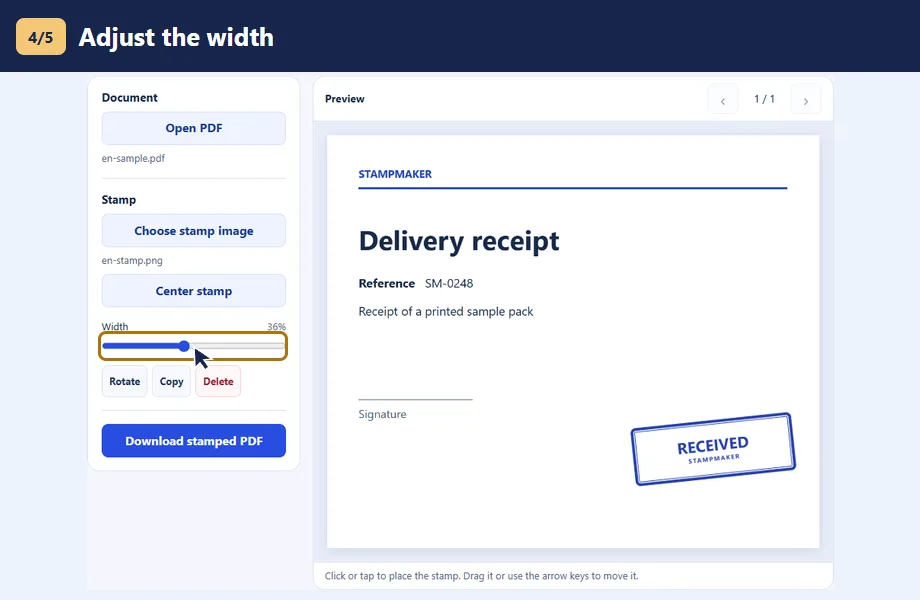
Choose a PNG or JPEG stamp image. Click or tap where it should go, then adjust the width or drag the stamp into position.
Download the PDF
Download a copy in the original format. If your browser opens a save dialog, choose the destination folder there.

Stamping guides by file type
Stamp a PDF online
Add a company stamp to a quote, or mark a delivery receipt as received. You can stamp selected pages in a multi-page PDF.
- Select “Open PDF” to open the source file and “Choose stamp image” to load your stamp image. A transparent PNG keeps the background visible.
- Use the page arrows to find the right page and place the image beside the signature line. Repeat on the other pages you want to mark.
- Select “Download stamped PDF” to save a separate copy in the original format.
Use an unsigned PDF when you need to add a stamp image before applying a digital signature.
Add a stamp to a Word document (DOCX)
Stamp a letter, meeting record or approval form and keep the copy editable in Word.
- Select “Open DOCX” to open the source file and “Choose stamp image” to load your stamp image. A transparent PNG keeps the background visible.
- Find the page with the date or signature block and place the stamp in a clear area.
- Select “Download stamped DOCX” to save a separate copy in the original format.
Word can lay out complex documents differently. Reopen the DOCX in Word and check the stamp after further edits.
Stamp an Excel workbook (XLSX)
Mark a stocktake or cost report as checked. The stamp is an image above the cells, so the underlying entries and formulas remain editable.
- Select “Open XLSX” to open the source file and “Choose stamp image” to load your stamp image. A transparent PNG keeps the background visible.
- Choose the worksheet by name. If the area you need is further down, enter a reference such as D25 in “First cell in preview”.
- Select “Download stamped XLSX” to save a separate copy in the original format.
Before printing, use Excel’s print preview to check that the stamp falls inside the print area.
Stamp a PowerPoint slide (PPTX)
Put a draft mark on the cover slide or an approval stamp next to a design decision.
- Select “Open PPTX” to open the source file and “Choose stamp image” to load your stamp image. A transparent PNG keeps the background visible.
- Go to the slide you want to mark and place the image away from titles and charts. Repeat for each slide that needs it.
- Select “Download stamped PPTX” to save a separate copy in the original format.
Open the downloaded PPTX in PowerPoint to check the result against the original fonts and layout.
Stamp a LibreOffice Writer document (ODT)
Place a stamp on a form or letter that you want to keep in OpenDocument format.
- Select “Open ODT” to open the source file and “Choose stamp image” to load your stamp image. A transparent PNG keeps the background visible.
- Find the relevant page and use a transparent image if the stamp crosses a printed line or background.
- Select “Download stamped ODT” to save a separate copy in the original format.
Page breaks can differ in Writer. Check the saved copy in Writer before sending or printing it.
Stamp a PNG with a transparent background
Mark a screenshot, a drawing or a transparent illustration. The saved PNG preserves transparent areas.
- Select “Open PNG” to open the source file and “Choose stamp image” to load your stamp image. A transparent PNG keeps the background visible.
- Place the stamp where it does not cover labels, then view the export at its actual size to check the fine print.
- Select “Download stamped PNG” to save a separate copy in the original format.
For a small screenshot, choose a crisp stamp image and give it enough room on the canvas.
Add a stamp to a JPG or JPEG photo
Add an inspection mark to a site photo or a picture of a paper document.
- Select “Open JPG / JPEG” to open the source file and “Choose stamp image” to load your stamp image. A transparent PNG keeps the background visible.
- Pick a quiet, high-contrast area of the photo and adjust the stamp width until its lettering is easy to read.
- Select “Download stamped JPG / JPEG” to save a separate copy in the original format.
JPEG is compressed again on export. Keep the original photo for future edits.
Stamp a scanned TIFF or TIF
Mark a scanned delivery note or archived form. A multi-page scan is saved as one TIFF.
- Select “Open TIFF” to open the source file and “Choose stamp image” to load your stamp image. A transparent PNG keeps the background visible.
- Page through the scan and stamp only the pages that need a mark. Review the result in a viewer with TIFF page navigation.
- Select “Download stamped TIFF” to save a separate copy in the original format.
The limit is 128 MB, 100 pages and 32 megapixels in total.
Try it with a sample
Download the sample PDF and transparent stamp. Open them in the PDF editor, place the stamp next to the signature line and save a copy.

Before you send the file
File and stamp sizes
Use a PNG or JPEG stamp up to 8 MB. The file size limit is 40 MB for most formats. TIFF has its own limits.
More than one stamp
Select a stamp and choose Copy to add a second one on the same page. Move and resize each copy separately.
Saving a copy
Your browser processes the document on your device. Saving creates a separate file, so you can keep the original.
Check the result
Open the saved file and confirm the stamp is easy to read and clear of any dates, signatures or important fields.